Landing page templates
Archbee provides white label Landing Page templates so you can easily create a branded landing page for your doc portal
How to get the Custom Code
From our GIT repo (coming soon)
How to use
To set up your Custom Landing Page you must copy our custom code to Space Settings -> Custom Code and Landing Page sections.
For each Template you will have 3 files: index.html, script.js and style.css
The 3 files can be found below for each Template:
Include Headers tab
Copy the Include Headers section from index.html
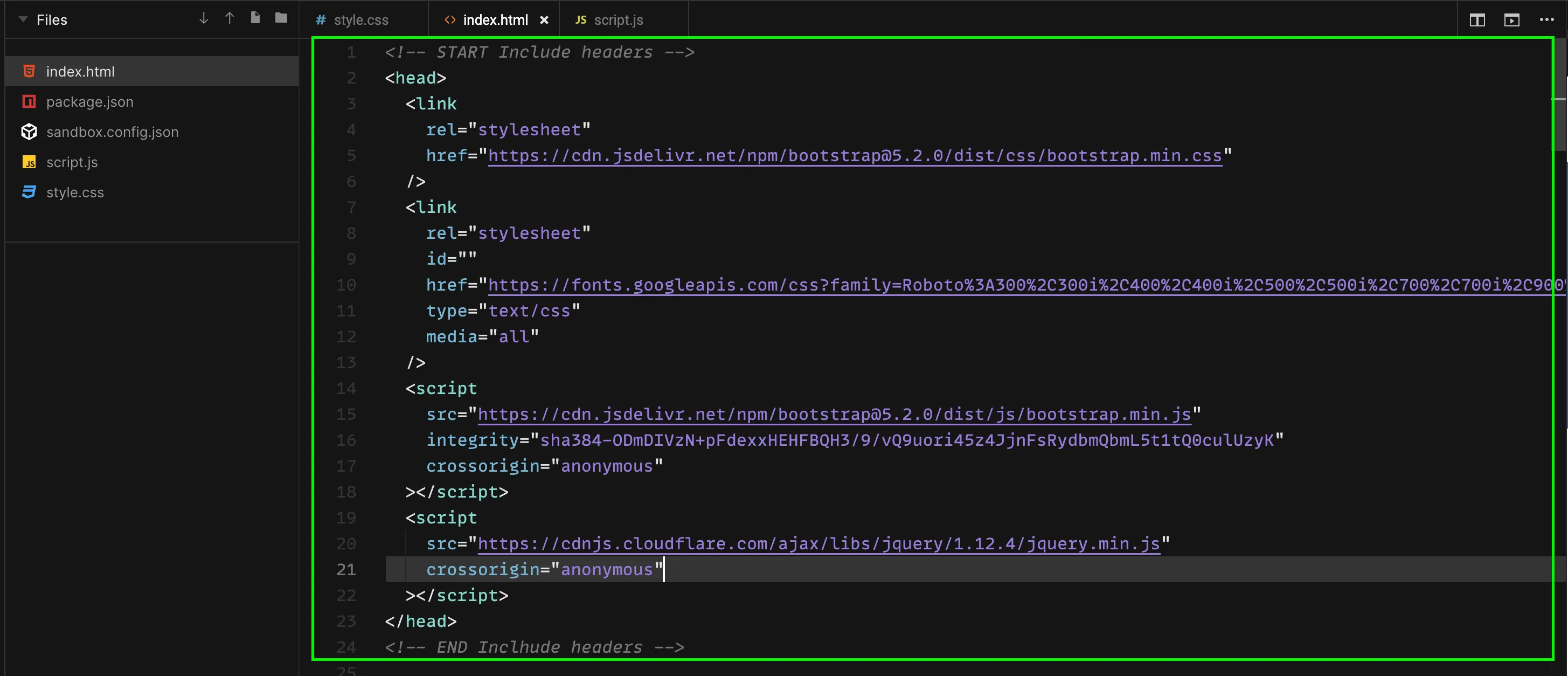
Paste it in the Include Headers section of Space Settings -> Custom Code
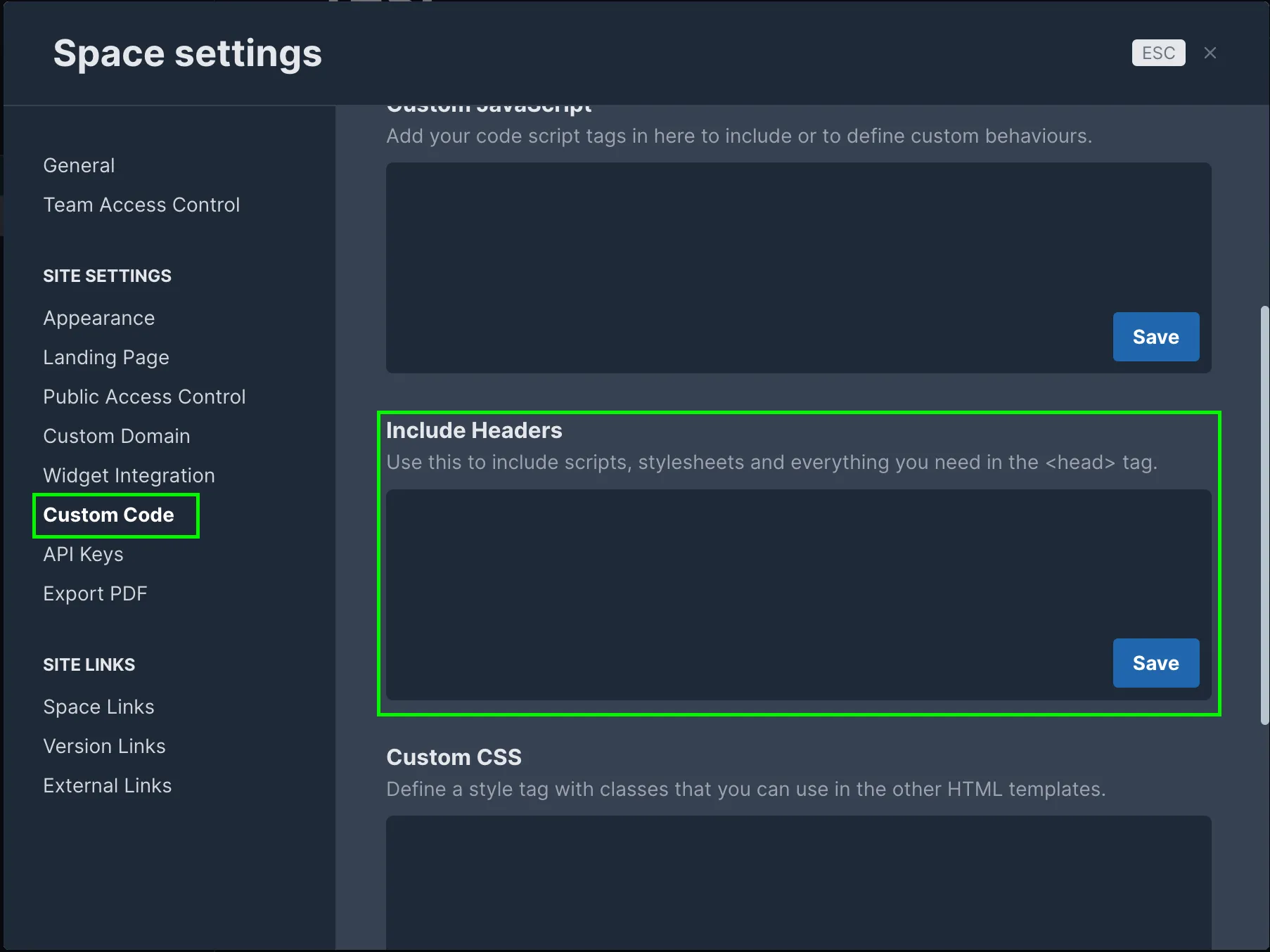
Make sure it includes the <head> tags and press Save
Custom CSS tab
Copy the content of the stlye.css file
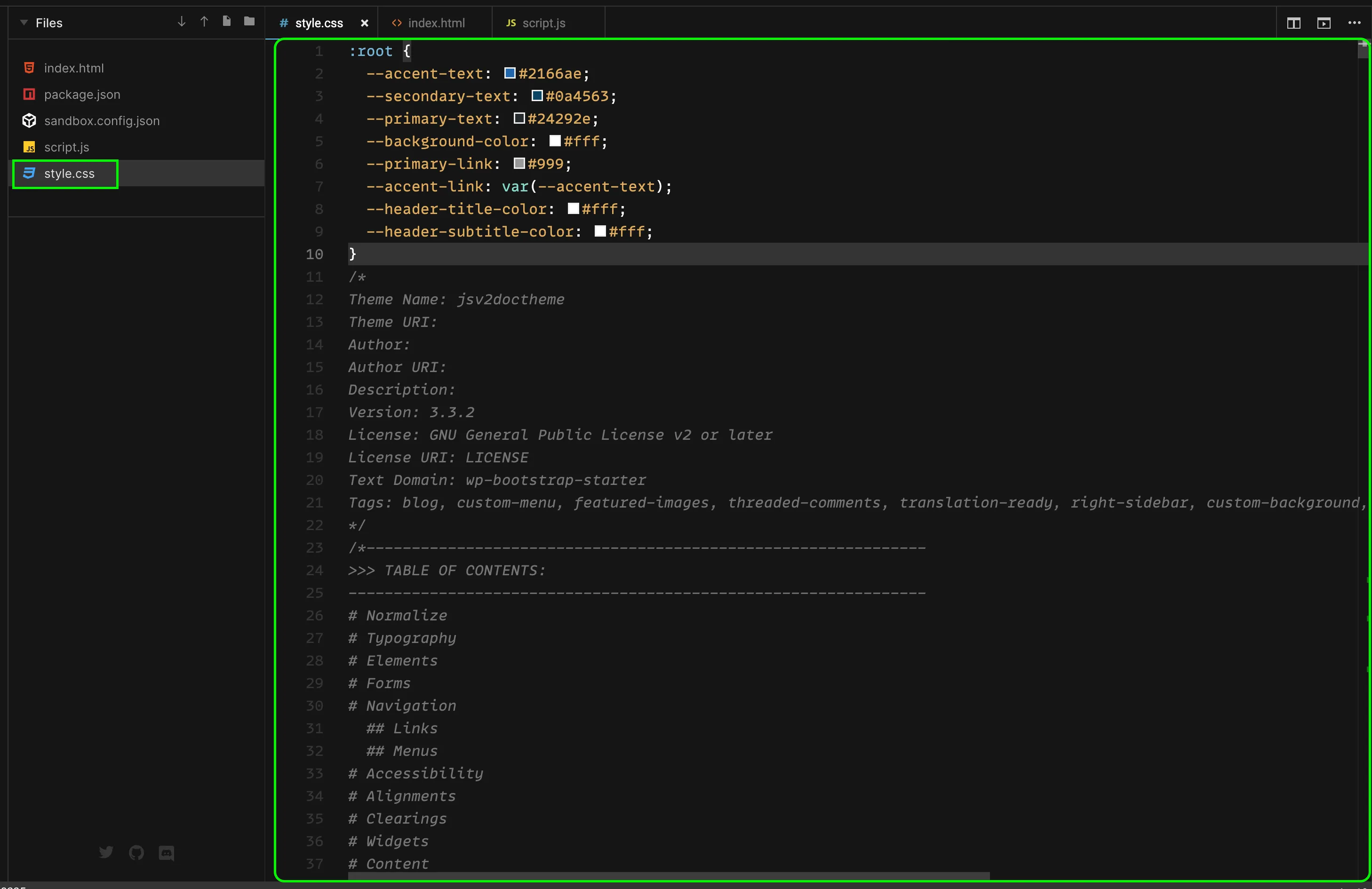
And add it to the Custom CSS section from Space Settings -> Custom Code. Ensure they are enclosed in <style></style> tags.
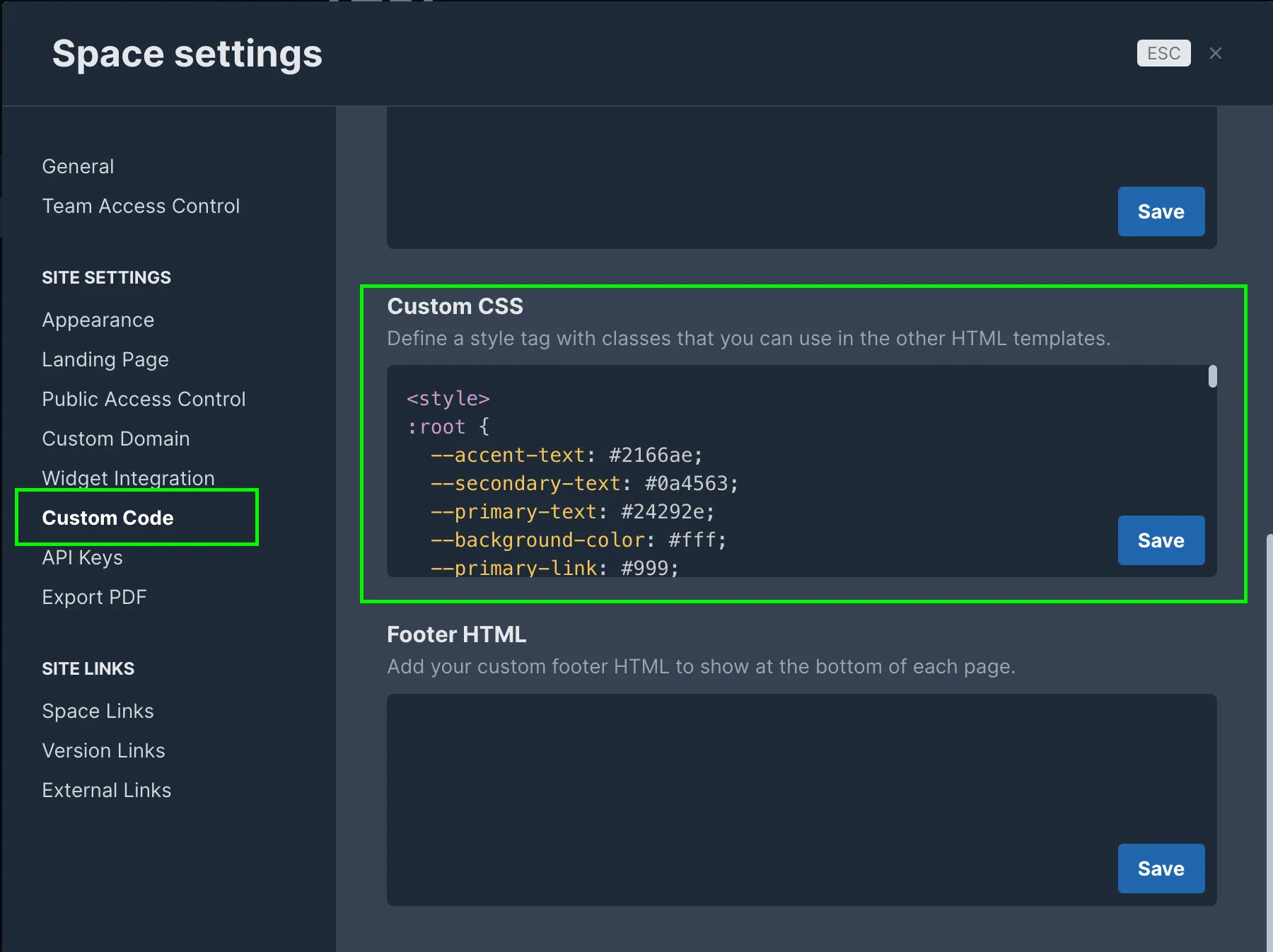
The style code starts with a few variable declarations, which can be used to easily change the theme of the page:
:root {
  --accent-text: #2166ae;
  --secondary-text: #0a4563;
  --primary-text: #24292e;
  --background-color: #fff;
  --primary-link: #999;
  --accent-link: var(--accent-text);
  --header-title-color: #fff;
  --header-subtitle-color: #fff;
}Custom JavaScript
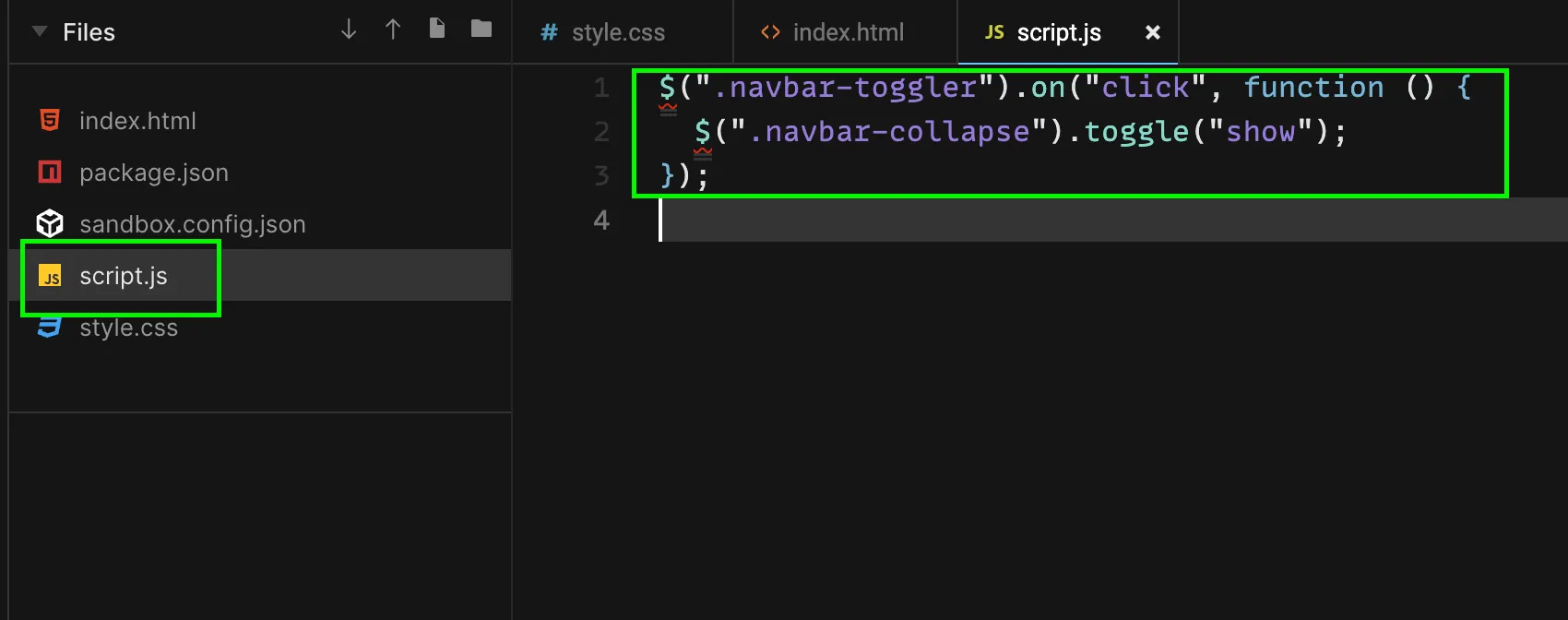
Copy the code from script.js
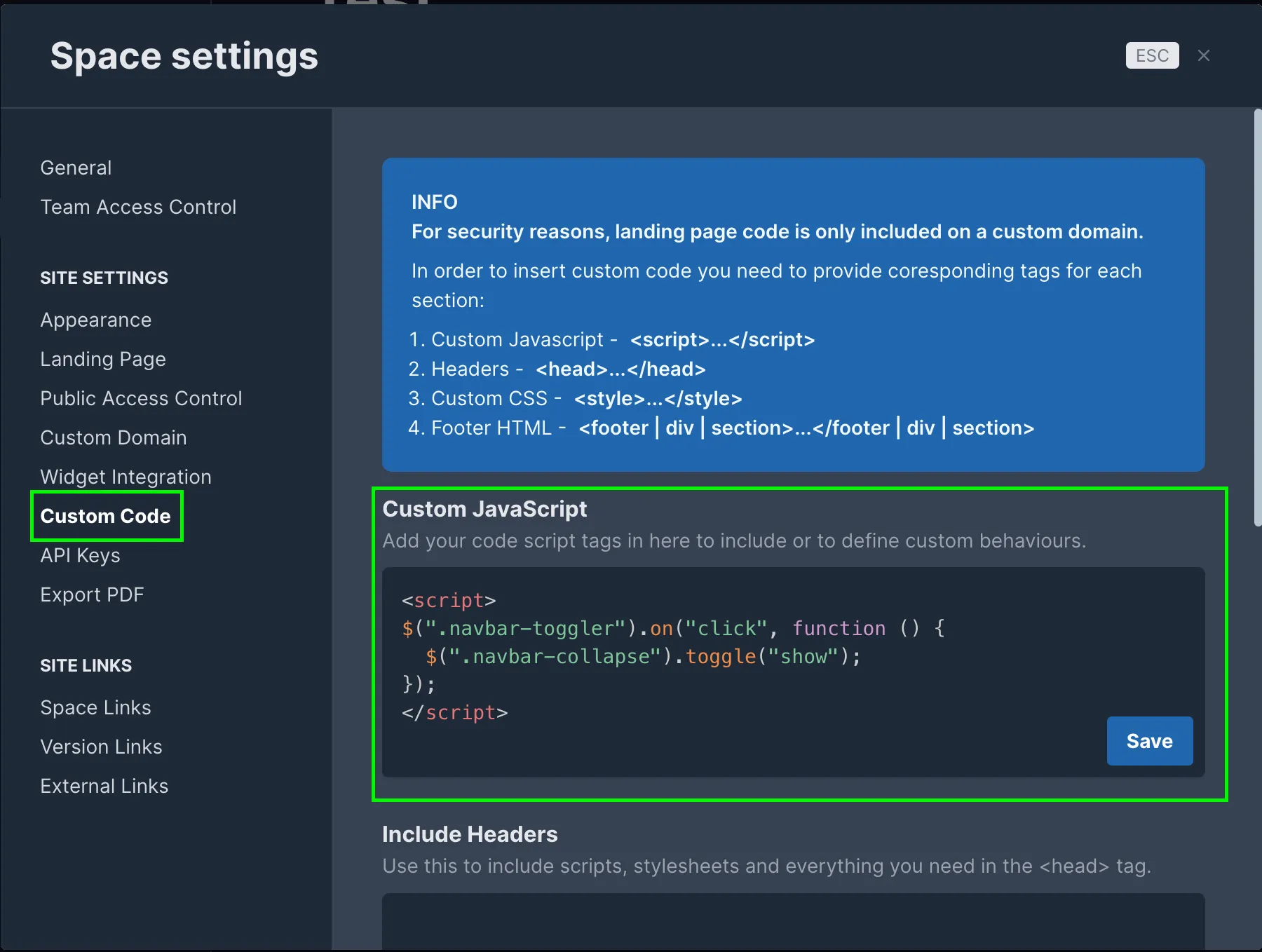
Add it to the Custom Javascript section from Space Settings -> Custom Code
Make sure they are enclosed in <script></script> tags.
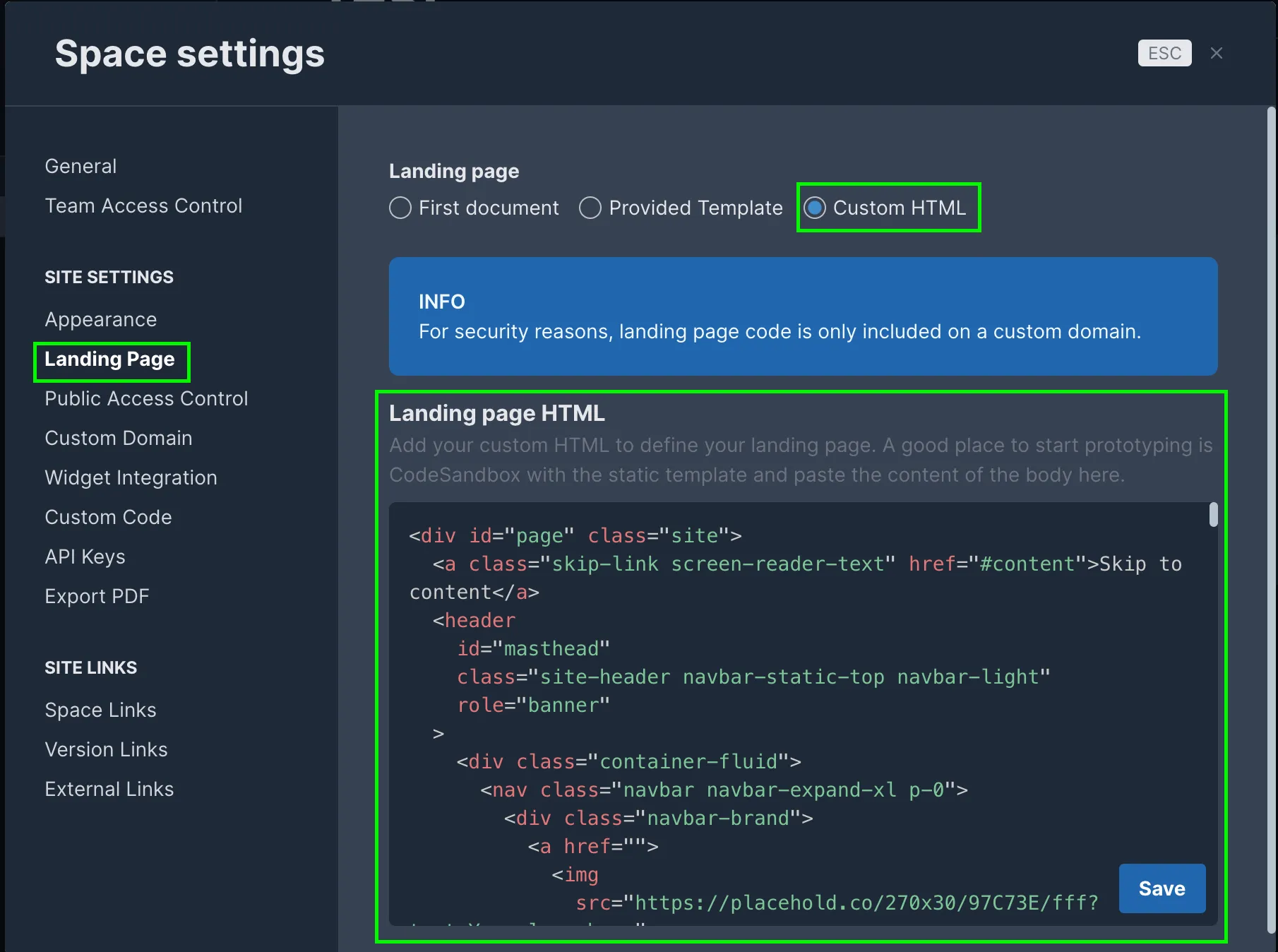
Landing page HTML
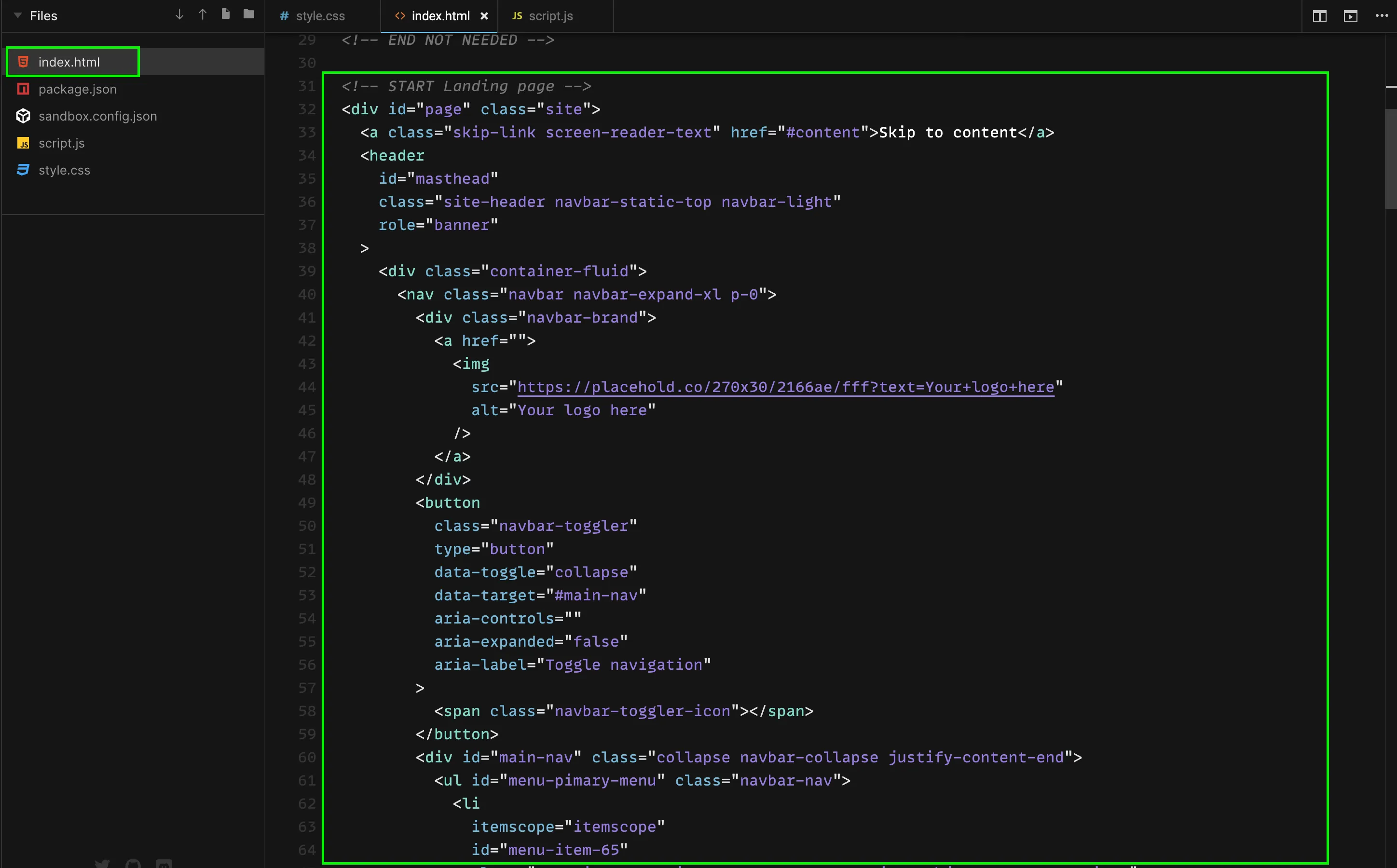
Copy the HTML code from index.html starting from the <!-- START Landing page -- > comment.
Select the Custom HTML landing page type and then add the html code in the container that appears below.
How to customise the code
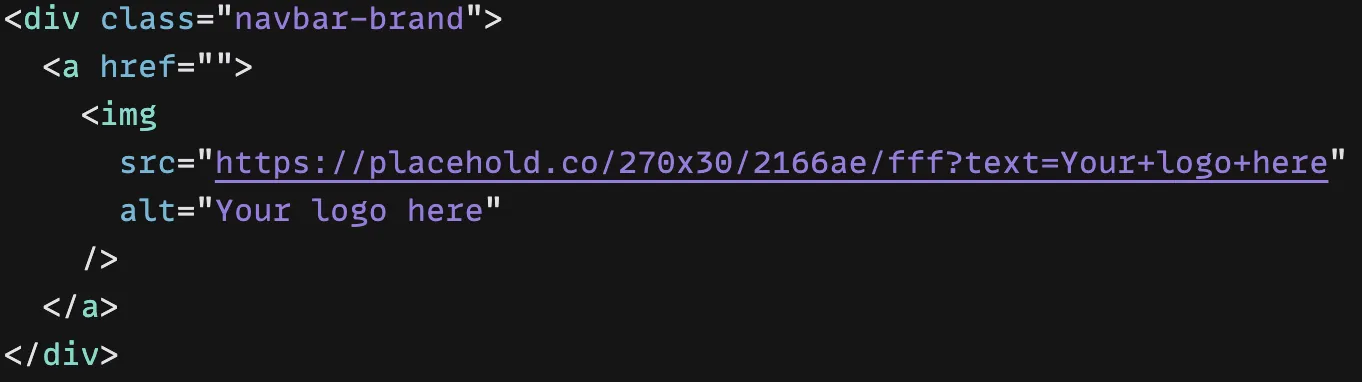
Logo + images
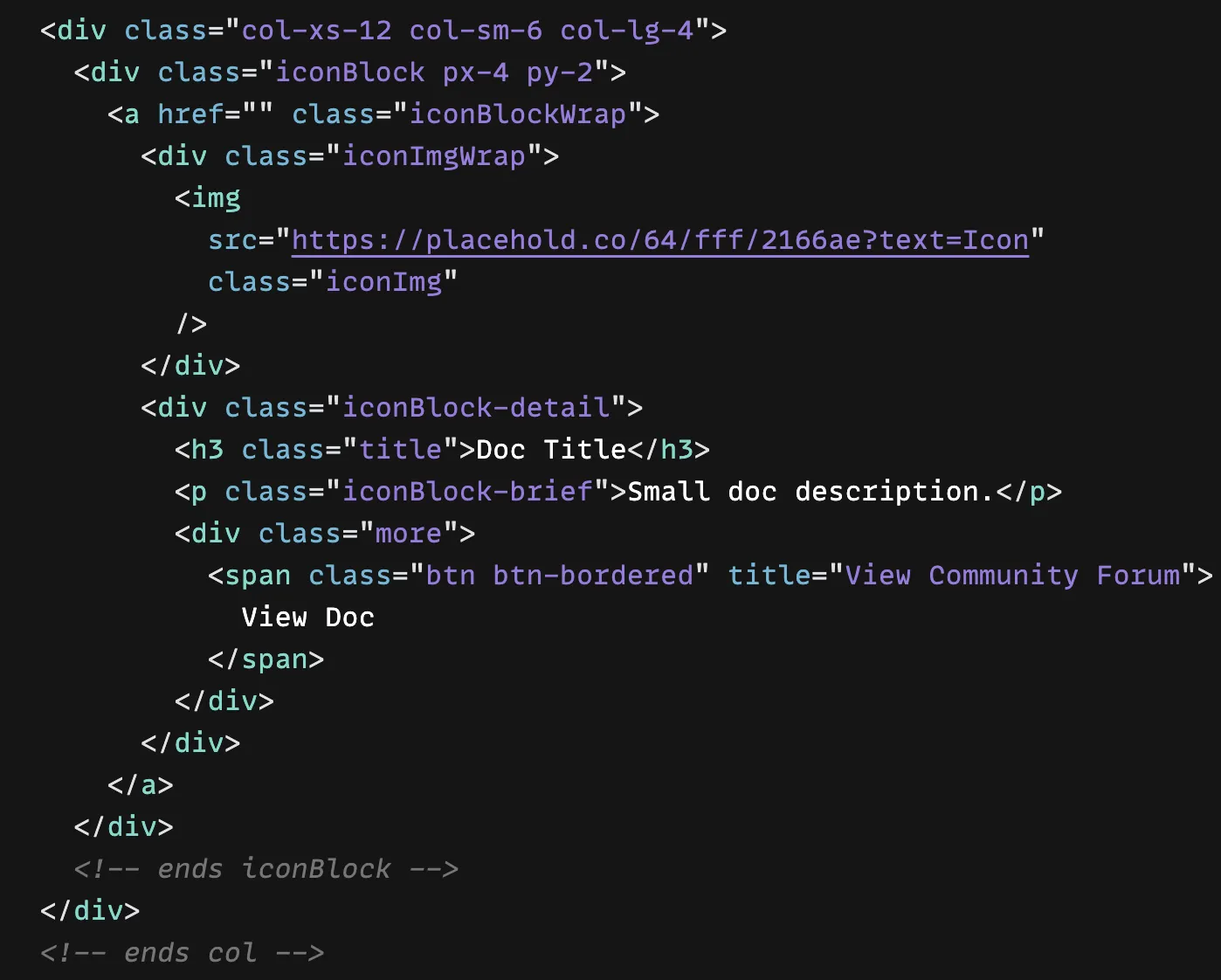
All images and logos are defined with placeholders with the format: <img src="https://placehold.co/..." ... /> as exemplified below:
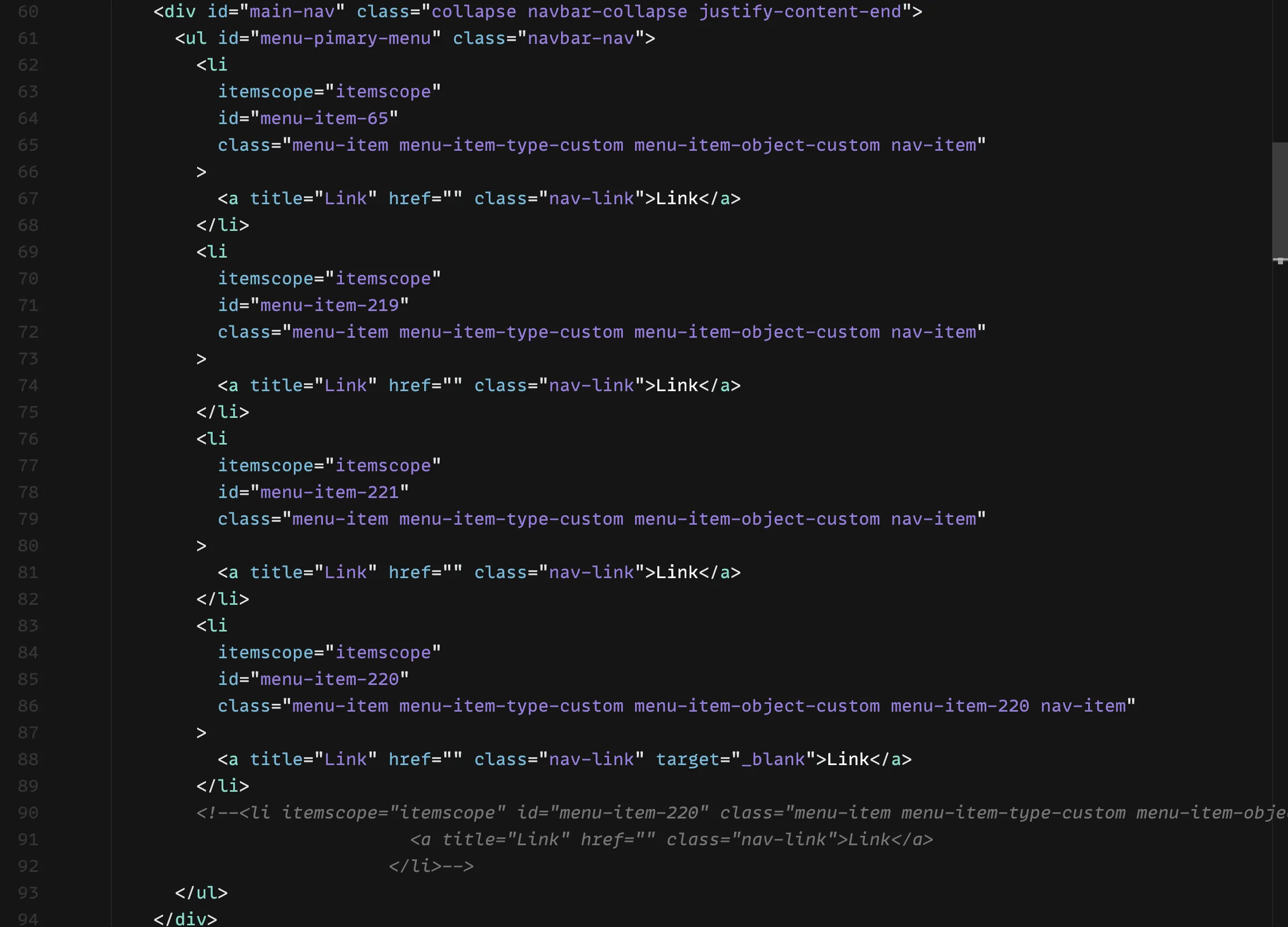
Navbar links
Navbar contains a few of links that can be used to navigate inside or outside the doc. At the end of the list there is also a commented link that can be used to add other links if need.
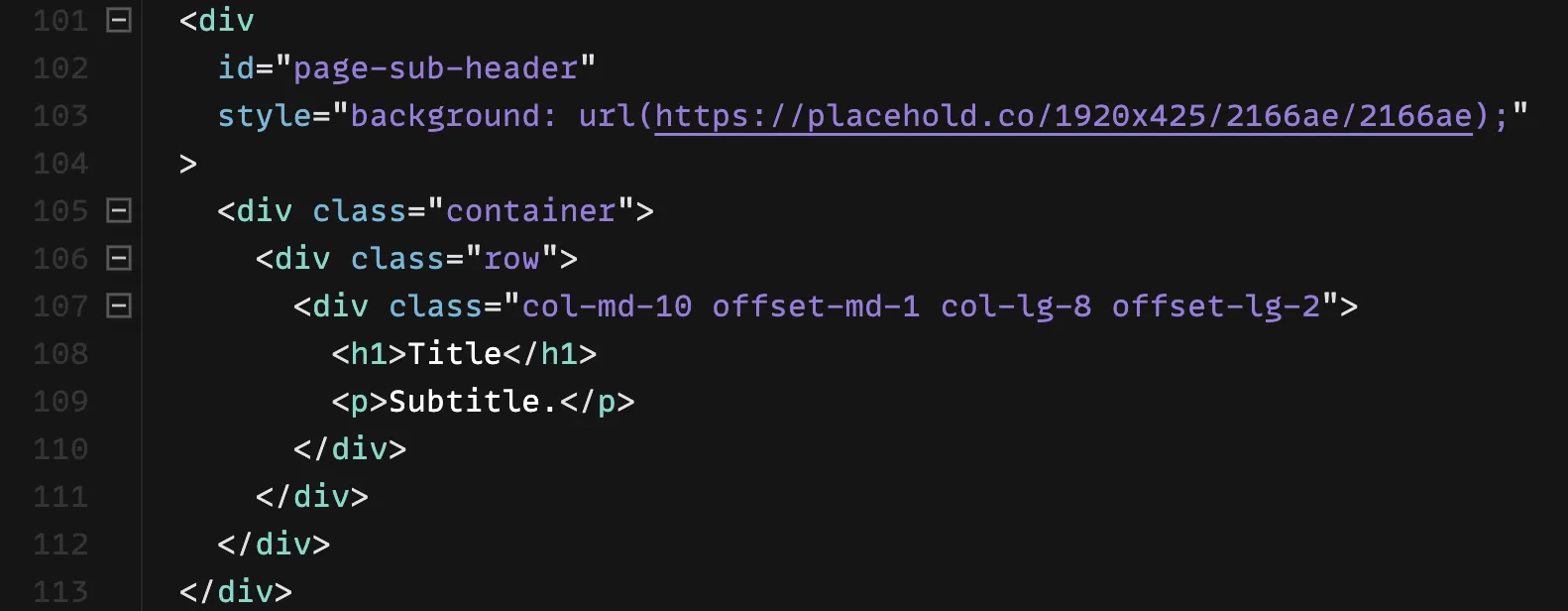
Hero section
Contains a background image and a title and subtitle (the colors of these can be changed in the style Styles section)
Document blocks
A list of blocks containing an icon, a title, a description and a button, generally used to navigate to your docs. An example is commented out at the end of list.