วิดเจ็ตเอกสารประกอบแอป
เอกสารตามบริบทจะถูกฝังอยู่ในผลิตภัณฑ์ของคุณตรงจุดที่ผู้ใช้ต้องการมากที่สุด วิดเจ็ตเอกสารตามบริบทช่วยให้ผู้ใช้สามารถอ่านคู่มือได้โดยไม่ต้องเปิดพอร์ทัลคู่มือผู้ใช้ในหน้าต่างอื่น
คุณสามารถโหลดบทความเฉพาะหรือโหลดทั้งพอร์ทัลคู่มือผู้ใช้ ซึ่งเป็นสิ่งจำเป็นสำหรับบริษัทที่ต้องการเพิ่มการใช้งานและการคงอยู่ของผลิตภัณฑ์
สิ่งที่คุณต้องทำคือฝังโค้ด HTML ที่สร้างภายใต้ การตั้งค่า Space -> การผสานรวมวิดเจ็ต.
วิธีการทำงานของวิดเจ็ต
ชมวิดีโอด้านล่างที่แสดงการทำงานของวิดเจ็ต:
วิธีการติดตั้งวิดเจ็ต
เพื่อผสานรวมวิดเจ็ต โปรดทำตามขั้นตอนเหล่านี้:
เลือก Space ของคุณภายในตัวแก้ไข
คลิกไอคอนรูปเฟือง (⚙️) เพื่อเข้าสู่การตั้งค่า
ไปที่การเชื่อมต่อวิดเจ็ต
คลิกปุ่มคัดลอก และวางโค้ดลงในindex.htmlของคุณ หรือในโค้ดแอปพลิเคชันของคุณ
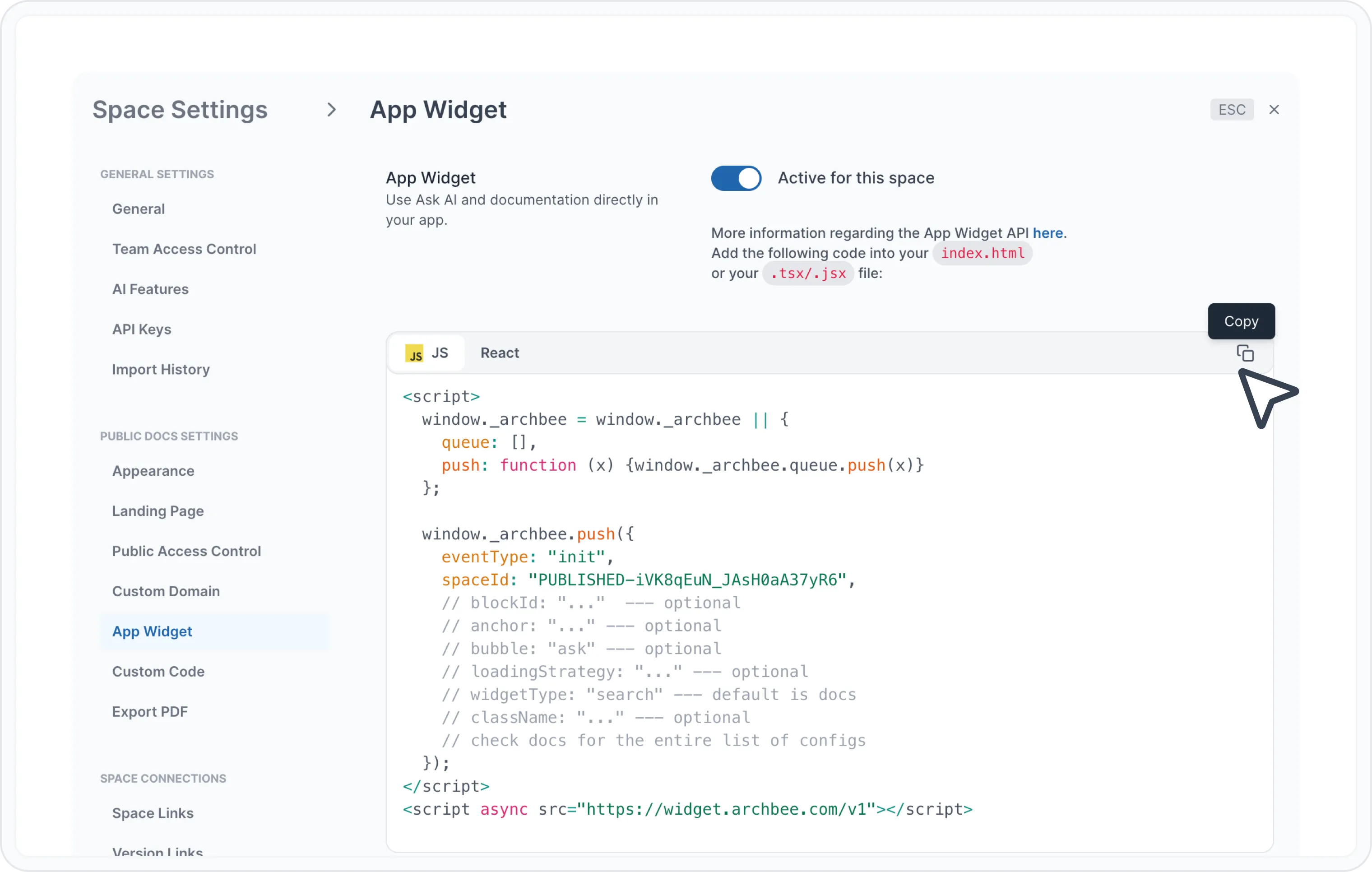
ตอนนี้ วิดเจ็ตจะจัดการทุกอย่างเองเบื้องหลัง ไม่ต้องกังวล ทุกอย่างถูกบันเดิลและย่อขนาดแล้ว ไฟล์มีขนาดเพียง 56Kb และโหลดแบบอะซิงโครนัส ดังนั้นผู้ใช้ของคุณจะไม่รู้สึกถึงความแตกต่าง
เหตุการณ์ Init
ในเหตุการณ์ init สำหรับค่า spaceId คุณสามารถใช้ spaceId หรือ PUBLISHED-{spaceId} วิธีนี้ช่วยให้คุณใช้ Spaces ได้โดยไม่ต้องเผยแพร่ และใช้งานได้โดยตรงในแอปของคุณ
ใช้ PREVIEW-{spaceId} เมื่อคุณต้องการเผยแพร่ space ไปยัง Preview เท่านั้น และไม่เผยแพร่บนโดเมนของคุณ
Property | Type | Description | Required |
|---|---|---|---|
spaceId | string | Pass the desired id to load your docs. | required |
jwt | string | Pass the jwt token in order to see jwt protected docs. | optional |
shareableToken | string | Pass the shareableToken from your private links to protect your docs. | optional |
widgetType | 'docs' | 'search' | Default value is docs. This opens the widget with the desired behaviour. docs type will open the widget with the default behaviour, search will open a search widget bar that shows a search bar with AI support (if included in your subscription). | optional |
hideNavbar | boolean | It shows or hides the top navbar from the widget modal. By default the navbar is visible. If you don't want to see the navbar, pass it with truevalue, otherwise just skip it. | |
loadingStrategy | lazy | eager | The default value is lazy. While lazy loading delays the initialization of a resource, eager loading initializes or loads the widget as soon as the code is executed. | optional |
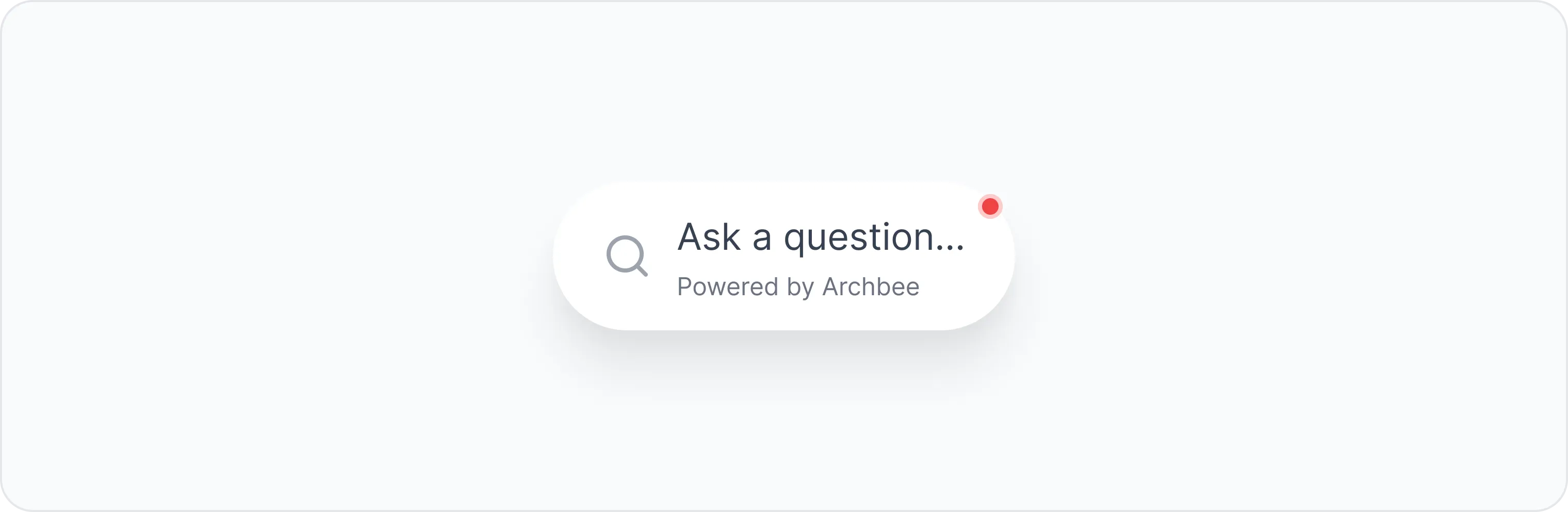
bubble | invisible | ask | The default value is invisible. If set to ask it will display a bubble in the bottom-right of your screen. Whenever someone clicks on it, the search widget will open. | optional |
bubblePlaceholder | string | The placeholder that will be displayed in the bubble section. If not passed, a default value of Ask a question will be displayed. | optional |
anchor | string | You can provide your class, id or path to a DOM element where you would like the widget to anchor and instantiate. It will anchor to the first element found in the DOM, if multiple elements with the same path are present. The container provided should have position: relative as the widget will be displayed based on the first relative parent found. e.g.,: anchor: "#my-container" / anchor: ".container-class" | optional |
หากคุณต้องการให้บับเบิลค้นหาง่าย ๆ แสดงอยู่ในแอปของคุณตลอดเวลา ให้ใช้ bubble: "ask" prop.
แสดงเหตุการณ์ของวิดเจ็ต
show-widget คือเหตุการณ์ที่เรียกให้แสดงวิดเจ็ต นอกจากนี้ยังมีคุณสมบัติไม่บังคับ ที่คุณสามารถส่งค่าเพื่อเปิดเอกสารเฉพาะจาก Spaces ที่คุณได้ตั้งค่าไว้
คุณสมบัติ | คำอธิบาย | จำเป็นหรือไม่ |
|---|---|---|
docId | ตั้งค่า doc id เพื่อเปิดเอกสารเฉพาะ หากdocId ถูกส่งค่าไปwidgetType จะถูกละเว้น และระบบจะเปิดในโหมดdocs โดยไม่คำนึงถึงค่าที่ส่งไป หมายเหตุ: คุณต้องเติมคำว่า PUBLISHED ไว้ข้างหน้าค่า docId เช่นPUBLISHED-docId หรือPREVIEW-spaceId ไม่เช่นนั้นวิดเจ็ตจะเปิดเอกสารจากโหมดแก้ไขซึ่งอาจมีการเปลี่ยนแปลงที่ยังไม่เผยแพร่ | ไม่บังคับ |
blockId | ตั้งค่า block id เพื่อเลื่อนหน้าไปยังส่วนที่ต้องการในเอกสารนั้น | ไม่บังคับ |
เหตุการณ์ที่รองรับ
นี่คือคำอธิบายโดยย่อของเรา Widget event API:
ชื่ออีเวนต์ | คำอธิบาย | จำเป็น |
|---|---|---|
init | อีเวนต์นี้ช่วยให้วิดเจ็ตของ Archbee โหลดไฟล์ที่จำเป็นเข้าสู่แอปของคุณ | จำเป็น |
show-widget | อีเวนต์นี้ใช้แสดงวิดเจ็ตตามที่ต้องการ | จำเป็น |
hide-widget | อีเวนต์นี้ใช้ซ่อนวิดเจ็ต หากกลไกในตัวไม่เพียงพอ | ไม่จำเป็น |
ตัวอย่างโค้ด
เพิ่มฟังก์ชันในตำแหน่งที่คุณต้องการแสดงวิดเจ็ตบนไซต์ของคุณ เช่นนี้:
const openAbWidget = () => {
    window._archbee.push({
        eventType: "show-widget",
        // optional, only for loading a specific doc
        // and scroll to section
        // docId: `PUBLISHED-${docId}`,
        // blockId: "TBMm9"
    });
}
วิดเจ็ตนี้จะโหลดพร้อมกับเอกสาร Space ที่ต้องการ และผู้ใช้จะสามารถเห็นทุกอย่างได้โดยตรงจากแอปของคุณ
หากคุณต้องการโหลดเอกสารเฉพาะเพียงอย่างเดียว เพียงส่ง docId: `${docId}` ไปยังออบเจกต์เริ่มต้นของเราตามตัวอย่างด้านบน
คุณไม่จำเป็นต้องใช้ฟังก์ชัน closeWidget เพราะวิดเจ็ตจะปิดโดยอัตโนมัติเมื่อคุณกด Esc หรือคลิกภายนอกวิดเจ็ต
อย่างไรก็ตาม หากคุณต้องการปิดวิดเจ็ตด้วยโปรแกรมโดยไม่พึ่งพากลไกปิดที่มีมาในตัว คุณสามารถใช้ event type hide-widget แบบนี้:
const closeAbWidgetAfterSeconds = (miliseconds) => {
    setTimeout(() => {
        // setTimeout is for demo purposes and it is not required...
        window._archbee.push({eventType: "hide-widget"});
    }, miliseconds);
}

closeAbWidgetAfterSeconds(5000);